
In today’s dynamic cloud environments, the ability to scale resources quickly is essential. However, keeping monitoring consistent during rapid scaling can be challenging. This blog explores how the SCOMAgentHelper Management Pack helps streamline Maintenance Mode operations directly from the agent side.
Summary
• Learn how to trigger Maintenance Mode directly from the SCOM agent.
• Automate exiting Maintenance Mode on server startup.
• Understand deployment behavior of the SCOMAgentHelper Management Pack.
Why SCOMAgentHelper?
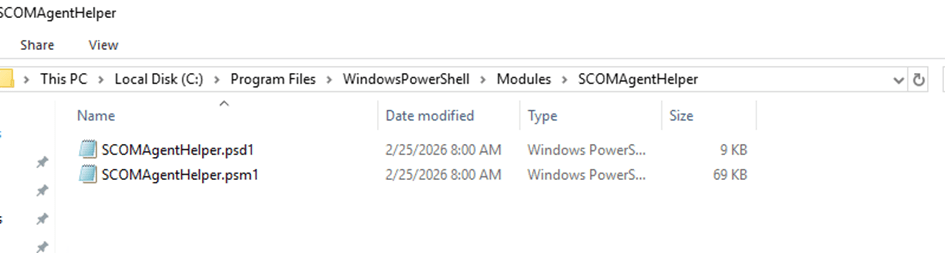
SCOM typically requires Maintenance Mode changes to be initiated from the console or management server. Triggering it directly from the agent has historically been difficult due to outdated or unreliable solutions. The SCOMAgentHelper MP resolves this by providing a PowerShell module that enables clean, local control of Maintenance Mode operations through event logs which gets distributed to the agents within a few hours as soon as the MP is imported.
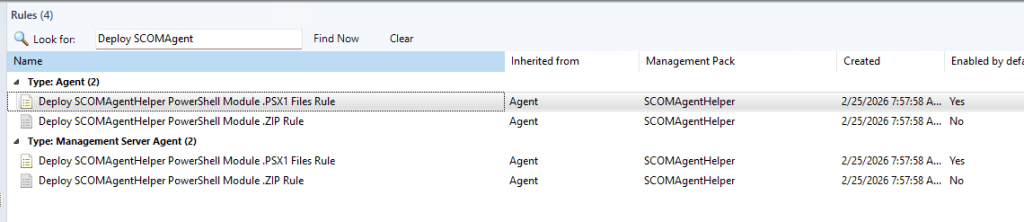
We would like to thank our friend Markus Eliasson @ SumNerv for pointing out that the distribution rule for this PS module can also be limited to a specific group by overriding following rule wherever it is needed.
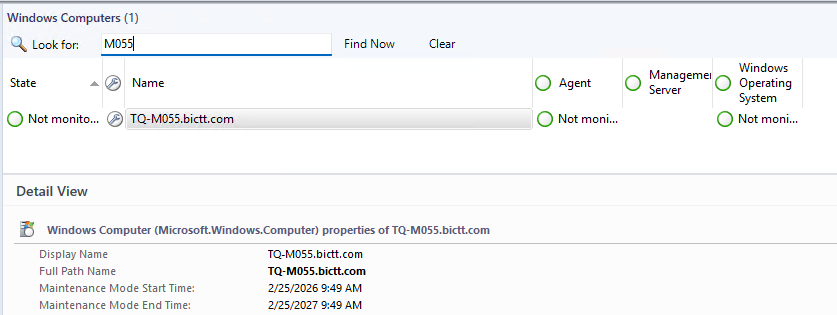
Starting Maintenance Mode from the Agent
Once the module is installed, enabling Maintenance Mode is as simple as running a single PowerShell command:
Set-SCOMAgentMaintenanceModeStatus -Start -DurationMinutes 525600 -Verify MgmtPerspectiveOnly
Because the server’s reboot time may be unknown, setting a long duration ensures that the server remains in Maintenance Mode until you intentionally end it.
Automatically Ending Maintenance Mode at Startup
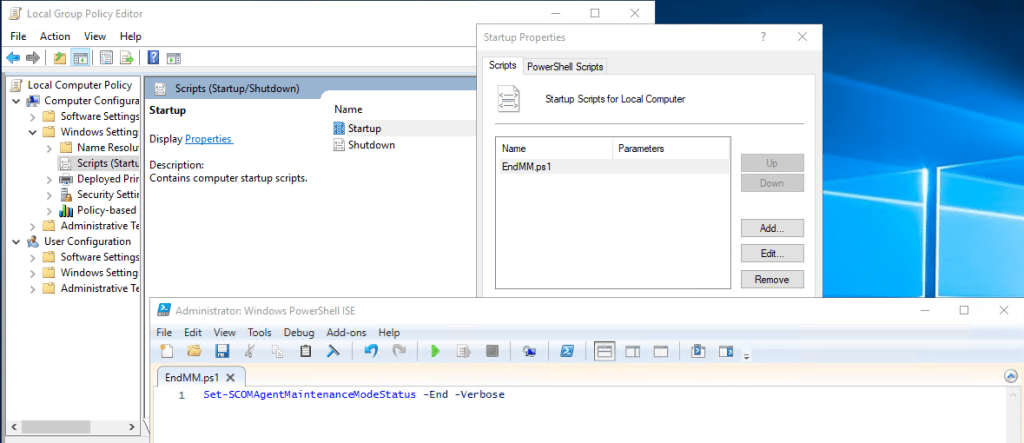
To ensure the server exits Maintenance Mode automatically upon reboot, a lightweight PowerShell script can be added to the Startup via Local Computer Policy or Active Directory Group Policy. This triggers the Management Mode exit using the same module during the boot process.
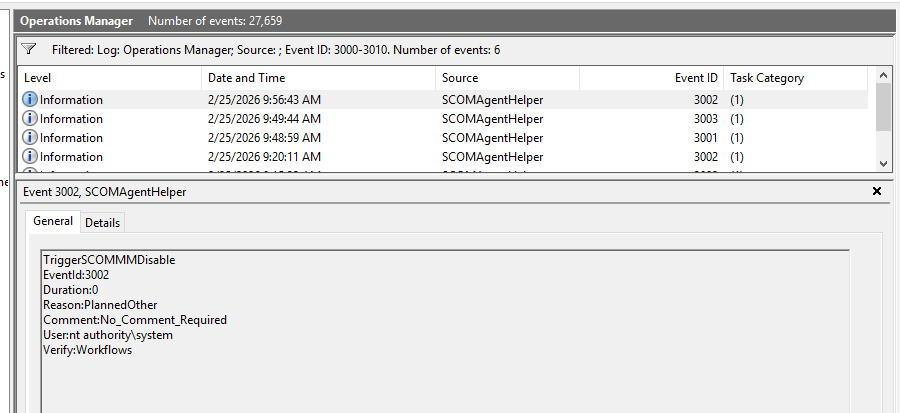
this can also be tracked checking the event viewer on the agent.
A Small Trade-Off
Because the script executes during system startup, the boot process may take slightly longer. This delay is minimal but worth considering when planning maintenance activities.